Sign in to Argo CD via Identity Center
The managed Argo CD capability authenticates only through AWS IAM Identity Center. There is no local admin account and no auto-generated password. Anyone who signs in does so with an Identity Center identity mapped to one of the three built-in Argo CD roles (ADMIN, EDITOR, VIEWER).
This page walks the one-time setup plus the first sign-in to the Argo CD UI. After this, you reuse the password you set here for the rest of this lab.
The event provisioning already relaxed MFA on the Identity Center instance it created and already completed this user's first sign-in, so there is no one-time password to generate. Your password is in AWS Secrets Manager under <cluster-name>-argocd-idc:
Steps 2 and 3 are for running this lab in your own account.
Disabling MFA weakens security for all users in the IAM Identity Center instance, not just the workshop user. Acceptable for a personal/dev/test account; do not apply this in a production account or shared organization.
The event provisioning applies this only to an instance it created itself. If it finds an instance that already existed, it adopts it and leaves its sign-in policy alone, because another workload's MFA settings are not the workshop's to weaken.
Signing in to the UI is optional. It lets you explore the Argo CD dashboard, but the rest of this lab works without it.
1. Identity Center user and group
The workshop user and group are created once per environment and shared by every lab whose capability federates with Identity Center. There is a single Identity Center instance per account and Region, so a per-lab user would mean a separate first sign-in for each one. They were exported into your shell by prepare-environment:
eks-workshop
eks-workshop-argocd-admins
Pre-created user
$EKS_CAP_ARGOCD_USER: administrative user mapped to the Argo CDADMINrole.
Pre-created group
$EKS_CAP_ARGOCD_ADMIN_GROUP: group with administrative privileges, associated with the Argo CD capability.
2. Disabling MFA for Workshop
To simplify the authentication experience during the workshop, we'll disable Multi-Factor Authentication (MFA) for Identity Center users.
Open the IAM Identity Center settings in the AWS console:
 Open Identity Center settings
IAM Identity Center is a regional service. Confirm the console's Region selector (top right) matches the Region where you created the workshop cluster before continuing. If you land on an "Enable IAM Identity Center" screen, you are in the wrong Region: switch Regions and the existing instance will appear.
Then disable MFA:
-
On the Settings page, find the Authentication section and select Configure for multi-factor authentication.
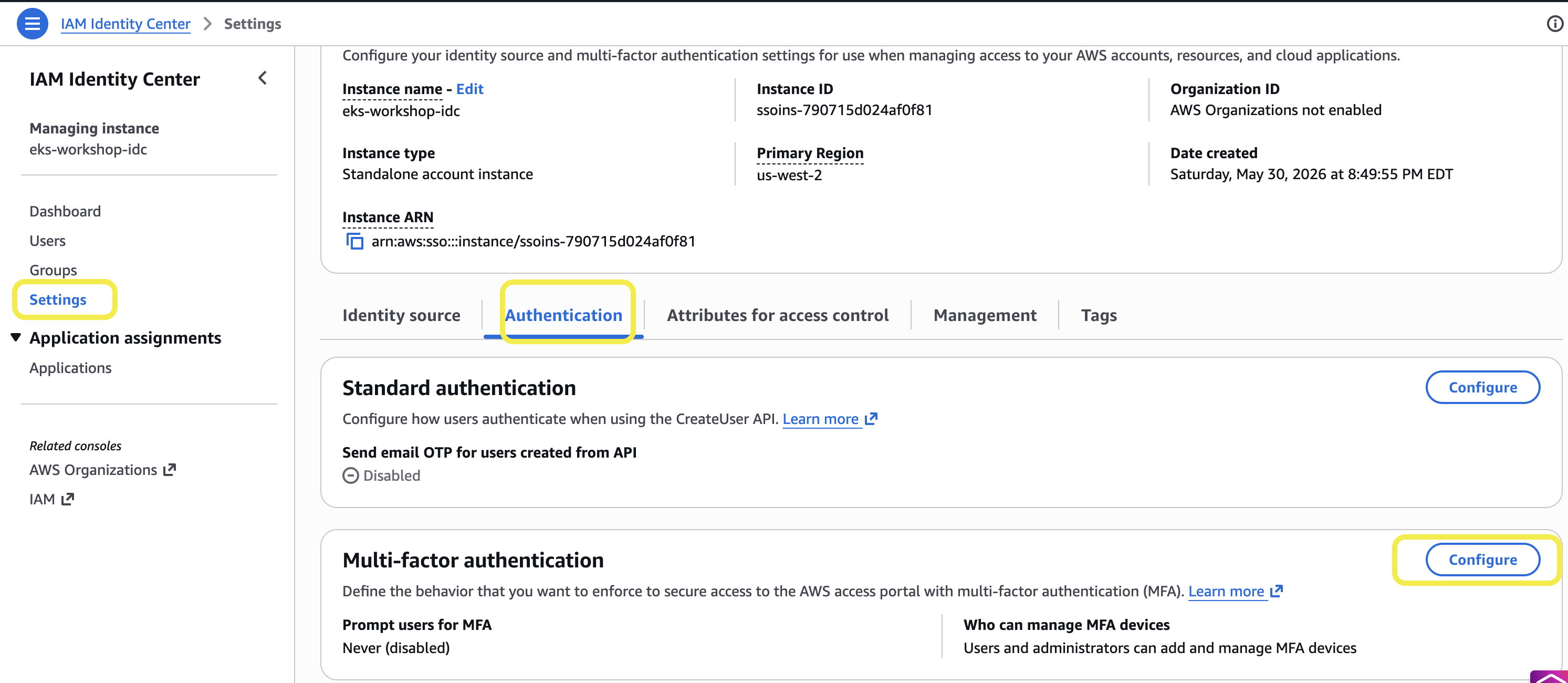
-
Select Never (disabled) in the MFA settings and save your changes.
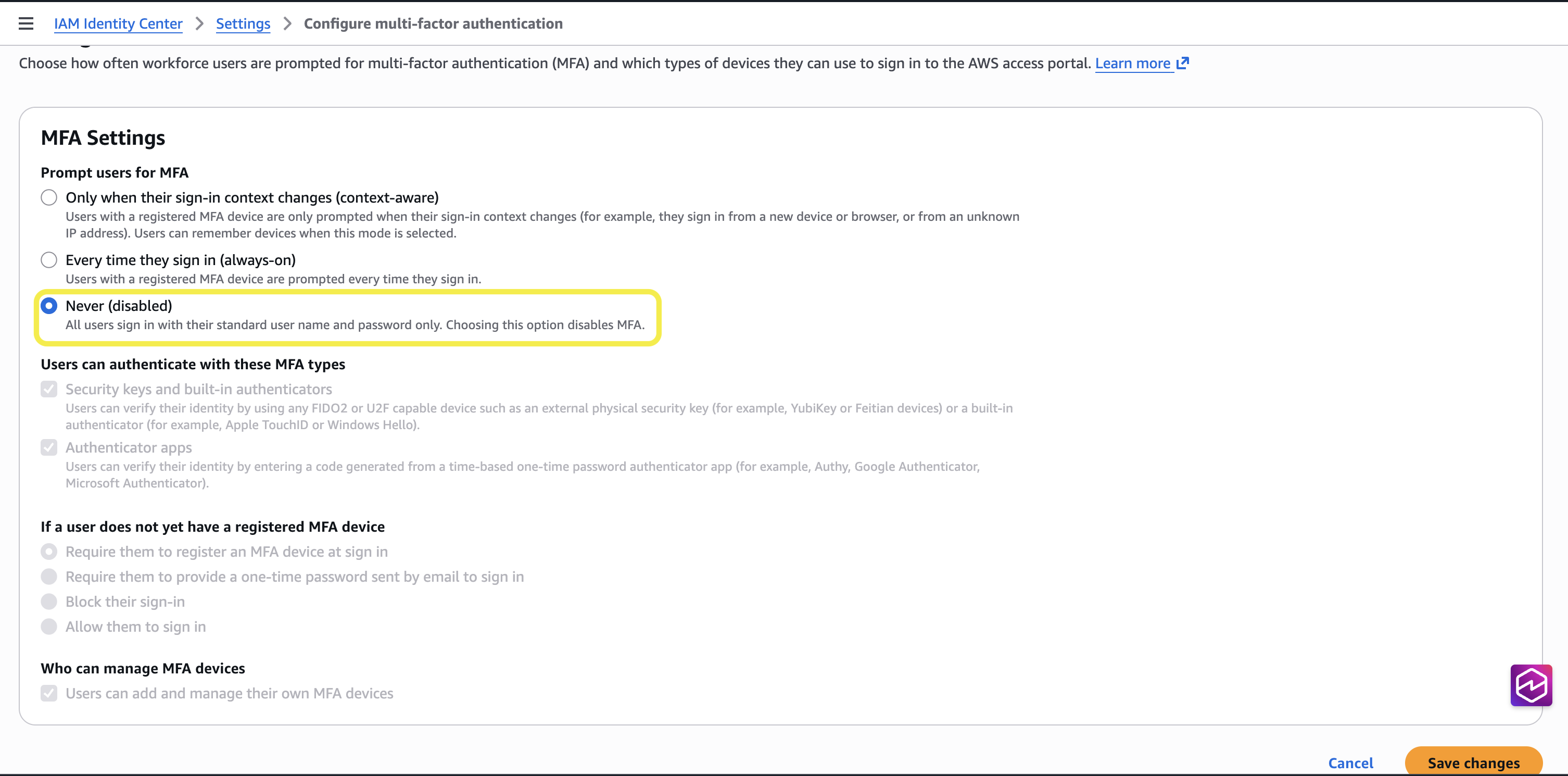
3. Generate temporary password for the admin user
New users in Identity Center require temporary passwords to be generated by administrators.
First, print the exact username to look for in the console. Terraform named the user after your cluster, so it won't literally say $EKS_CAP_ARGOCD_USER in the console:
eks-workshop
Open the Identity Center Users list:
Open Identity Center users
-
Find and select the user matching the name you just printed (for example
eks-workshop).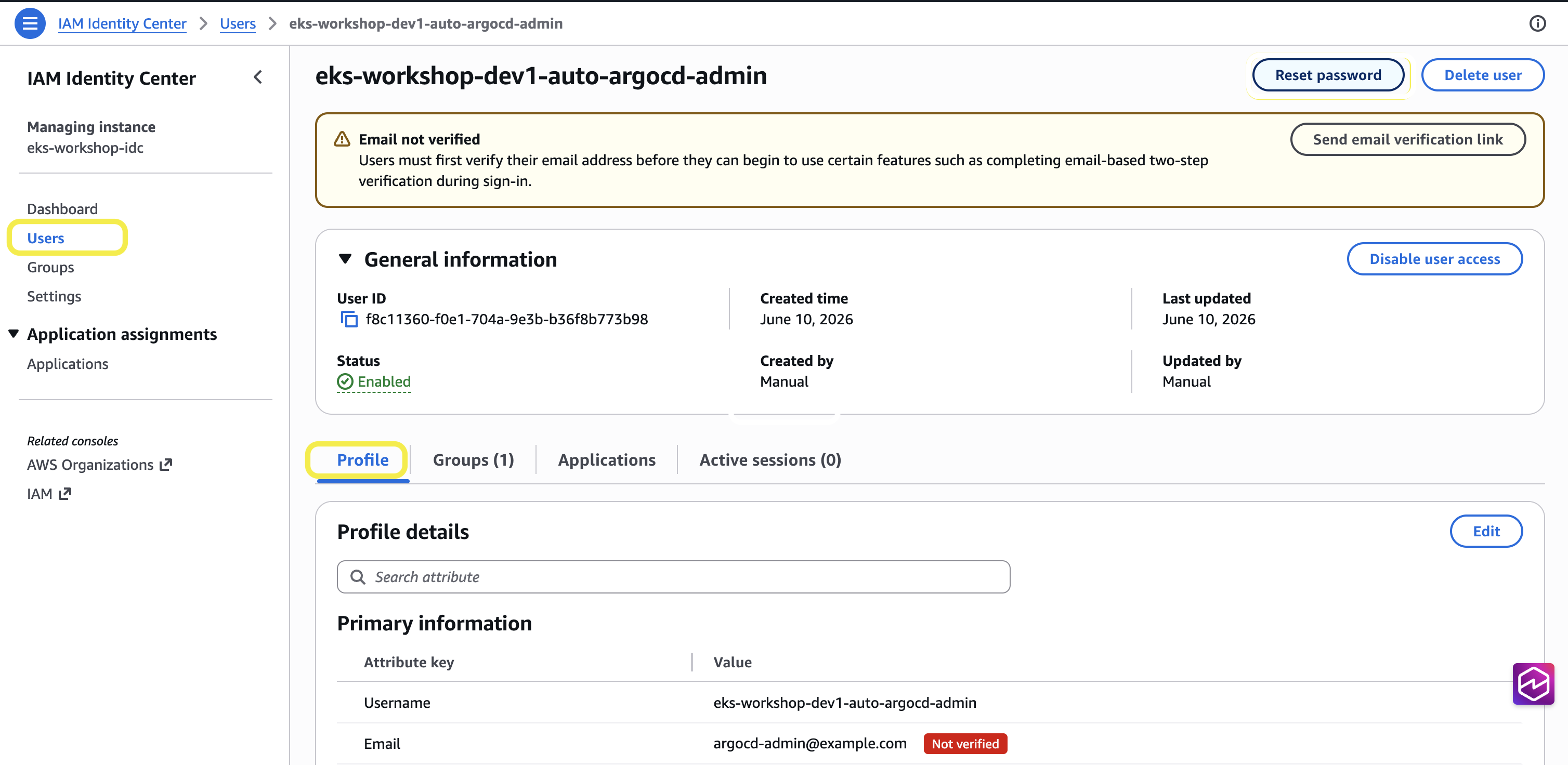
-
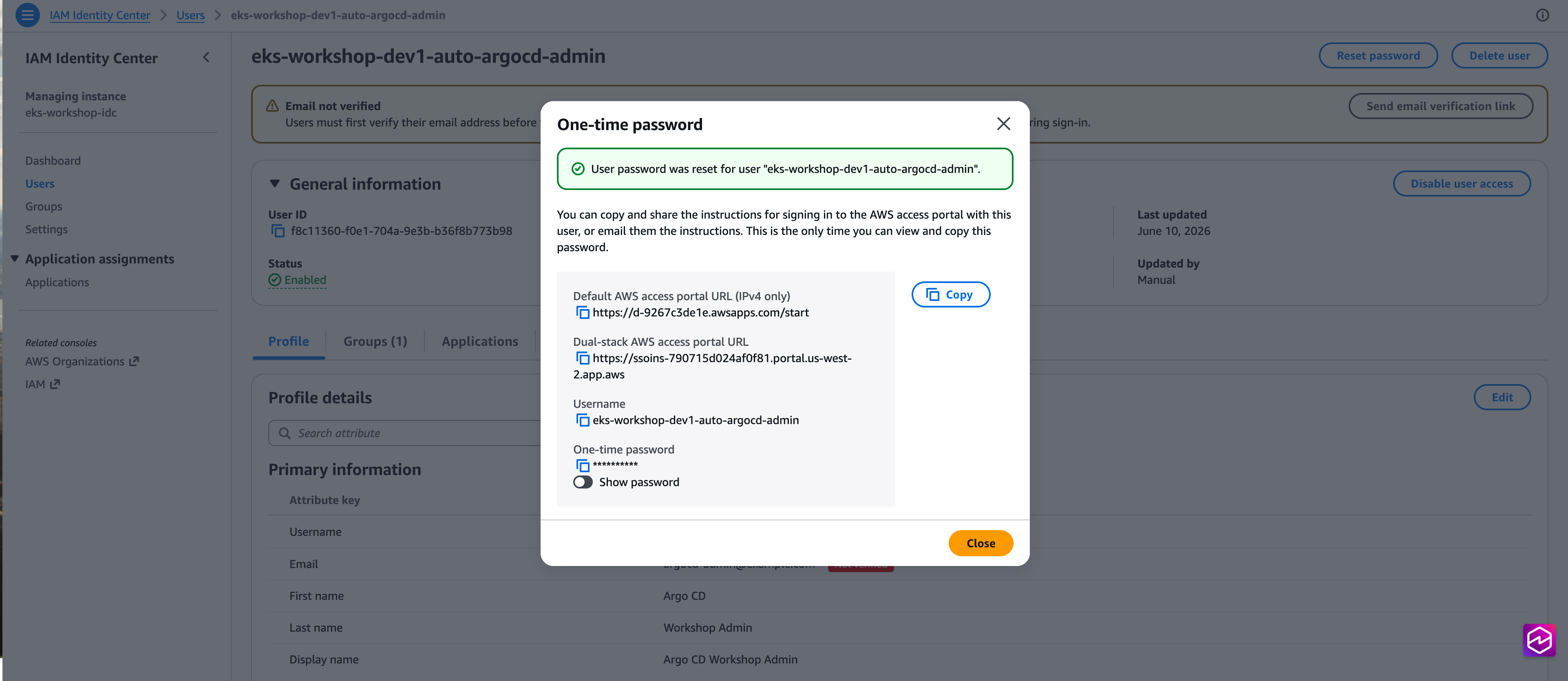
Reset Password
- Click "Reset password"
- Choose "Generate a one-time password"
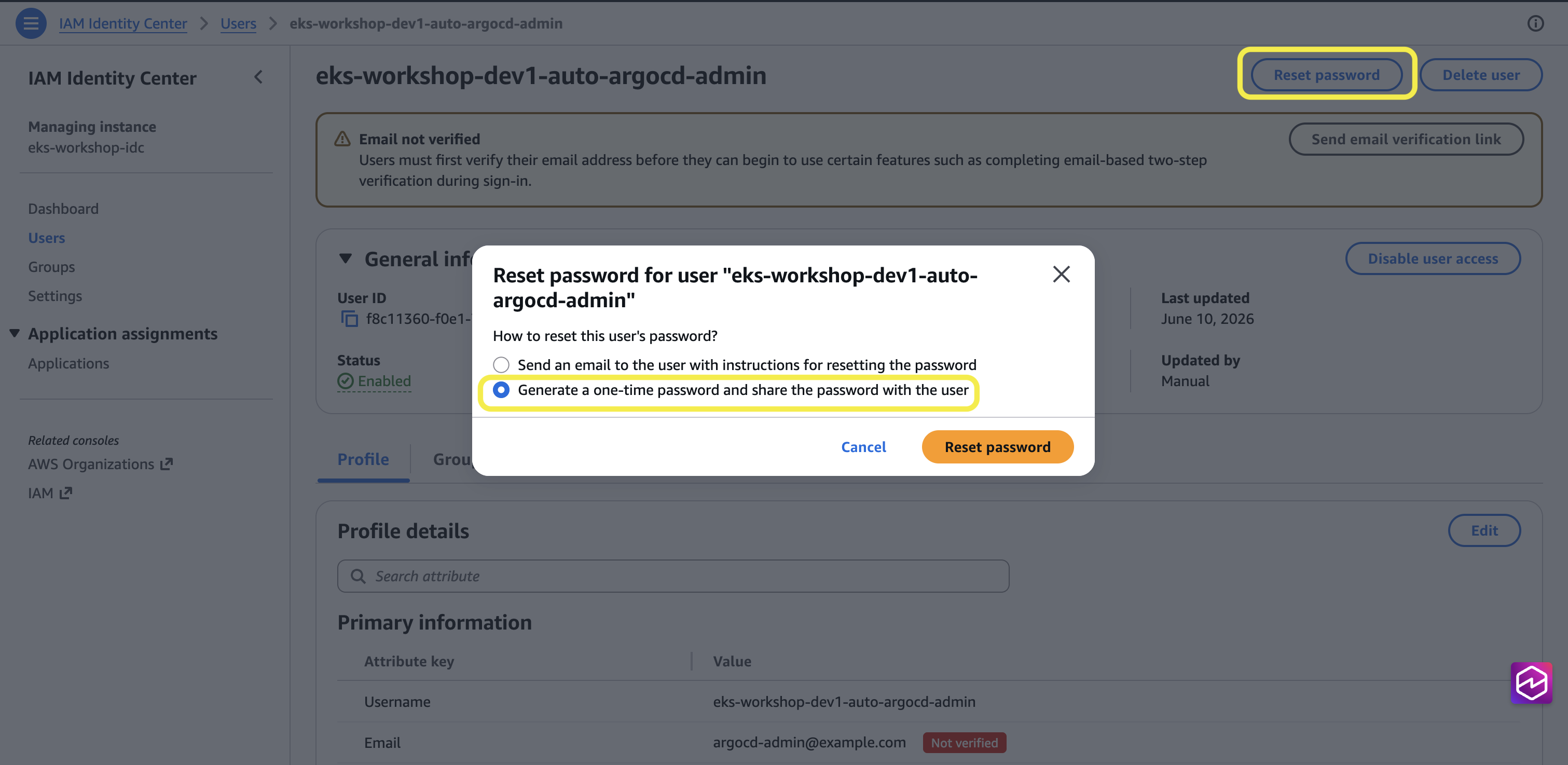
-
Copy the generated one-time password and paste it somewhere safe (a scratch file or note). You'll need it to sign in during the next step, and generating it here overwrites your clipboard.
4. First sign-in to Argo CD
Open the Argo CD URL in a new browser tab. The capability publishes it, so ask the EKS API for it rather than expecting it in the environment:
- Click Log in via AWS Identity Center.
- Username: the value of
$EKS_CAP_ARGOCD_USER. Click Next. - Password: the one-time password you copied in step 3. Click Sign in.
- Identity Center forces a Set new password screen on first sign-in. Choose any new password and confirm it.
- After setting the new password you'll be redirected to the Argo CD Applications view as
ADMIN.
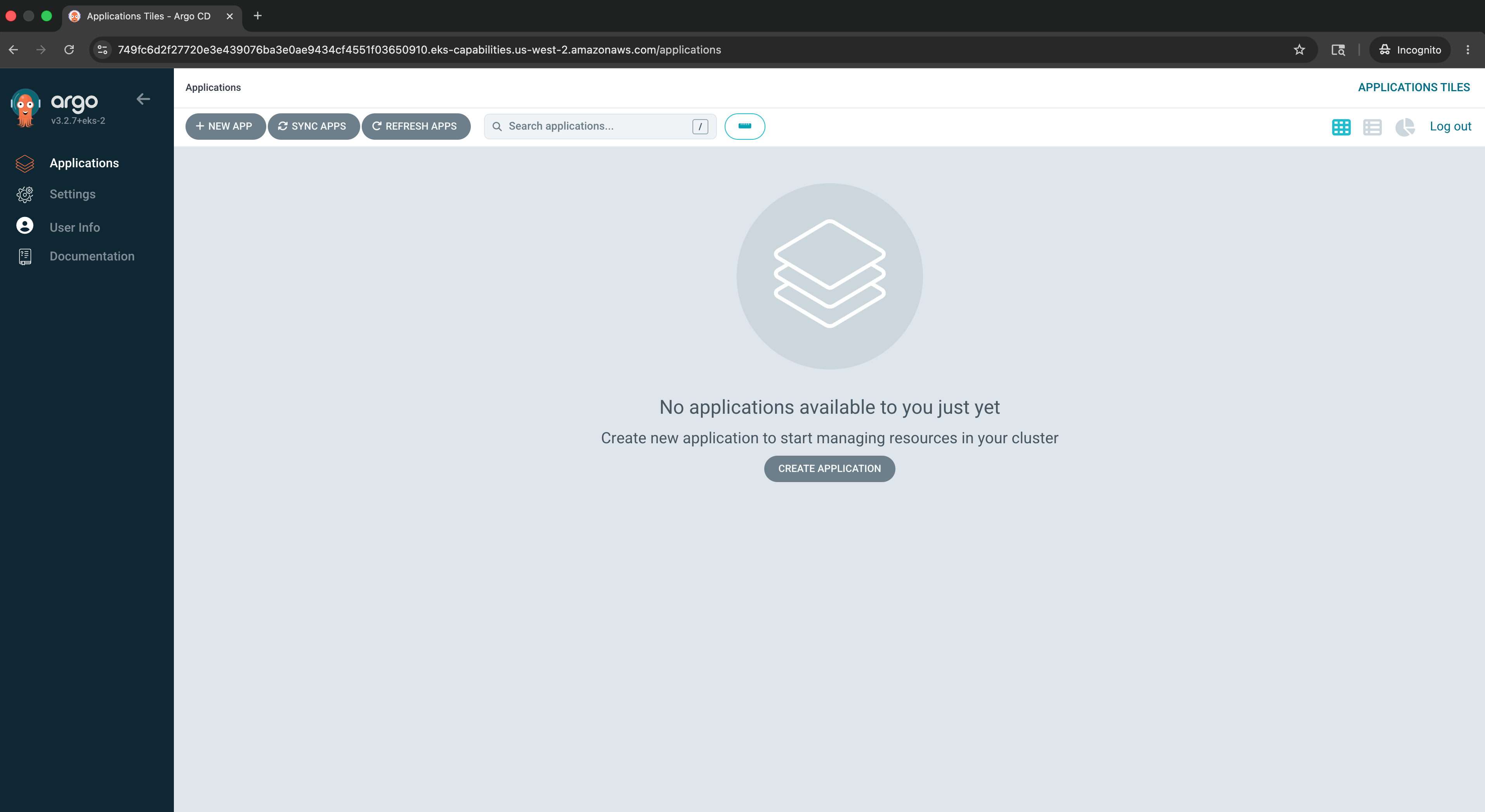
You can also reach the UI from the Amazon EKS console: select your cluster, choose the Capabilities tab, choose Argo CD, then Open Argo CD UI. Both paths route through the same Identity Center sign-in.
You're now ready to walk through the rest of this lab.